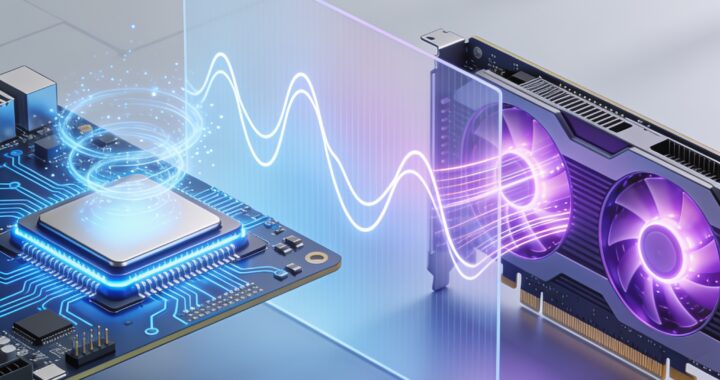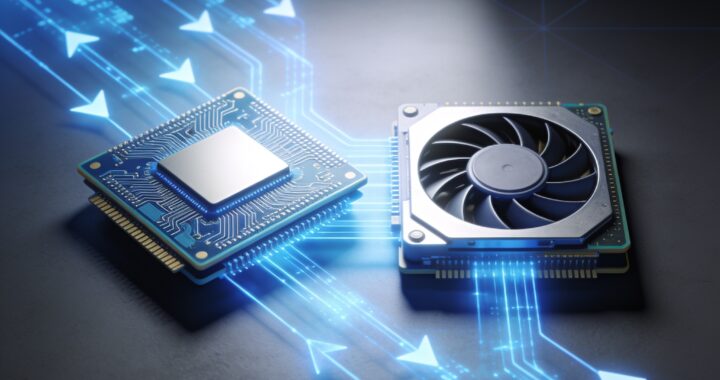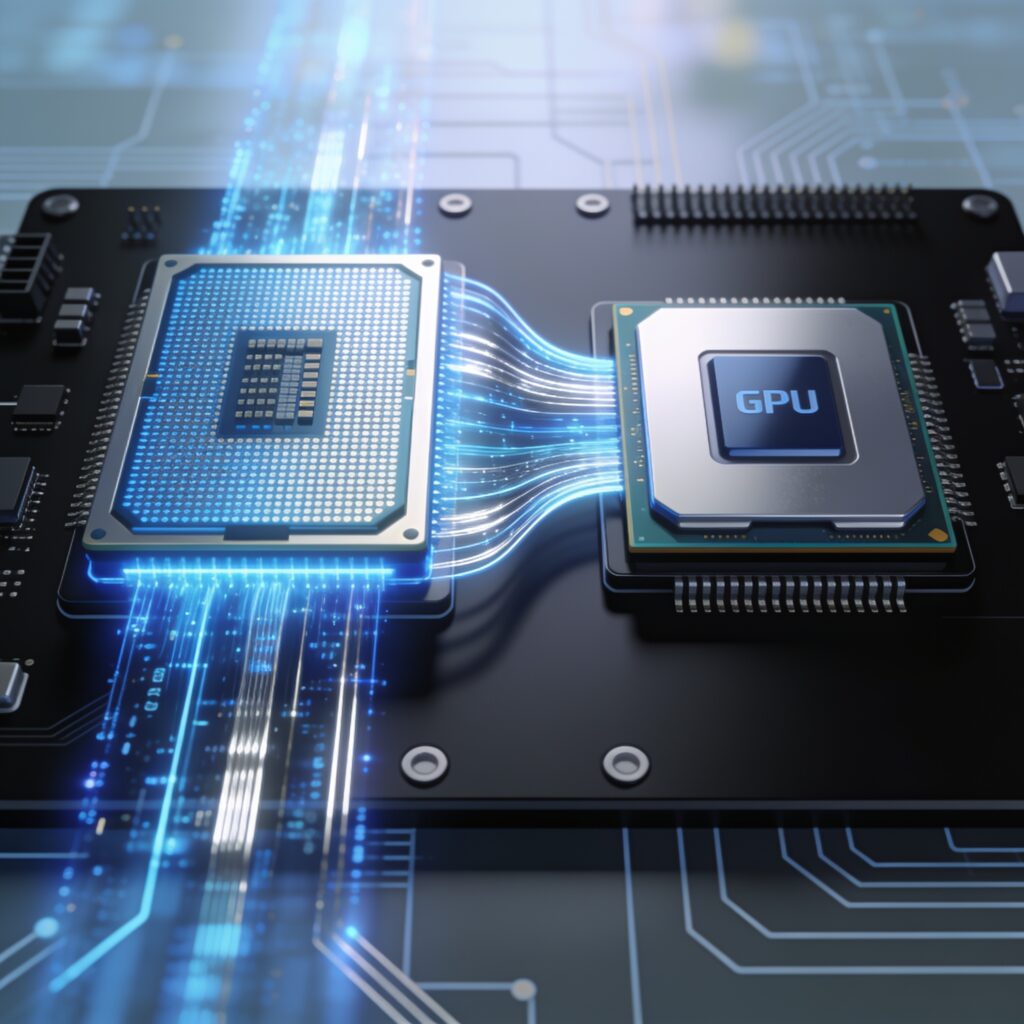
A gaming bottleneck calculator is a tool designed to estimate whether your CPU and GPU are well-matched in terms of performance headroom. The premise is simple: if one component significantly outpaces the other, it may not deliver the frame rates or visual quality you expect. Understanding what the tool actually measures—and, equally important, what it doesn’t—can help you make smarter decisions about your PC build or troubleshoot performance issues after purchase.
What Is Bottlenecking, and Why Does It Matter?
Bottlenecking occurs when one component in your system limits the performance of another. In gaming, the two most common scenarios are CPU-bound and GPU-bound systems.
In a GPU-bound system, your graphics card is the limiting factor. It cannot process frames fast enough to keep your processor fully occupied, so you see lower frame rates than your CPU could theoretically handle. In a CPU-bound system, your processor is the bottleneck; the GPU sits idle waiting for frame data, again resulting in lower performance than the graphics card is capable of delivering.
Neither scenario is inherently a disaster. Every PC has some degree of mismatch—perfect balance is rare and expensive. The question is whether the mismatch is acceptable for your use case and budget.
How a Bottleneck Calculator Works
A gaming bottleneck calculator estimates performance headroom by comparing CPU and GPU specifications and historical benchmark data. Here’s what you typically need to input:
- CPU model (e.g., Intel Core i5-13600K or AMD Ryzen 7 5700X)
- GPU model (e.g., NVIDIA RTX 4070 or AMD RX 7800 XT)
- Display resolution (1080p, 1440p, or 4K)
- Target frame rate or game settings preset (ultra, high, medium)
The calculator then cross-references CPU and GPU performance data, factors in typical workloads at your chosen resolution and settings, and outputs a bottleneck percentage. For example, a result might show “12% GPU bottleneck at 1440p ultra settings,” meaning the GPU is expected to be the limiting factor by roughly that margin.
Interpreting Bottleneck Calculator Results
Most calculators categorize results into ranges, though the exact thresholds vary between tools. A typical breakdown looks like this:
- 0–10% bottleneck: Excellent balance. Both components are well-matched and should deliver close to their maximum potential.
- 10–20% bottleneck: Mild bottleneck. Acceptable for most gamers; you will not notice a dramatic performance cliff.
- 20–30% bottleneck: Moderate bottleneck. Performance is noticeably limited, but the system can still game well at the specified settings.
- 30%+ bottleneck: Severe bottleneck. One component is significantly underutilized; you may not see the performance you expect from the more powerful part.
In practical terms, a mild bottleneck of 10–15% is often unnoticeable to the average player, while a 25% bottleneck may cost you 8–12 frames per second in demanding titles. However, real-world results depend heavily on factors the calculator cannot predict.
A Realistic Example
Suppose you are building a 1440p gaming PC with an Intel Core i7-13700K and an NVIDIA RTX 4070. You input these specs into a bottleneck calculator at “high” settings. The tool returns “8% CPU bottleneck.” This suggests that at 1440p high settings, your GPU will slightly lead performance, and your CPU will be lightly underutilized. In real gameplay, this means your frame rates will be limited primarily by the graphics card—a perfectly reasonable pairing. Neither component is heavily constrained.
Now imagine you pair that same i7-13700K with an RTX 3060. The calculator shows “35% GPU bottleneck.” This means at 1440p high settings, the graphics card will be the major limiting factor, and your powerful CPU will sit idle much of the time. You might see 60 fps instead of the 100+ fps the CPU could theoretically deliver, because the GPU cannot feed it frames fast enough.
What Bottleneck Calculators Do Well
A gaming bottleneck calculator serves as a useful sanity check. It quickly flags extreme mismatches—like pairing a high-end RTX 4090 with an entry-level Pentium processor, or vice versa. For first-time builders or those unfamiliar with performance hierarchies, a calculator can prevent obviously unbalanced purchases. It also helps you understand which component will likely be your performance ceiling at a given resolution and settings level.
Where Bottleneck Calculators Fall Short
Despite their utility, calculators have real limitations. They work with aggregate benchmark data and cannot account for the specific behavior of individual games. Some titles are heavily CPU-intensive (strategy games, heavily modded simulations), while others hammer the GPU. A calculator working from average data might miss these nuances.
Calculators also do not factor in monitor refresh rate, which is crucial to your actual experience. Pairing a midrange GPU with a high-end CPU to drive a 360 Hz esports monitor at 1080p low settings might show a CPU bottleneck, but you will see smooth, responsive gameplay because the GPU can easily keep up with the monitor’s refresh cycle. The calculator might suggest a better balance, but your real-world experience could be excellent.
Driver updates, firmware tweaks, and system-level optimizations can shift bottleneck dynamics over time. A pair that showed a 25% GPU bottleneck six months ago might perform differently after a BIOS update or GPU driver release. Calculators cannot predict these variables.
Beyond the Bottleneck Calculator: What Really Affects Gaming Performance
A balanced CPU and GPU are important, but they are only part of the story. RAM speed and capacity, NVMe storage performance, cooling efficiency, and driver maturity all influence actual frame rates and smoothness. A system with a theoretical 15% bottleneck that runs hot and lacks sufficient RAM might perform worse than a theoretically more imbalanced system with excellent cooling and fast memory.
Power supply headroom matters too. If your PSU is undersized, voltage sag under load can reduce both CPU and GPU performance, potentially creating artificial bottlenecks that have nothing to do with component mismatch.
Should You Change Your Build Based on a Bottleneck Calculator?
Not automatically. A calculator result is data, not destiny. If a calculator shows a 22% GPU bottleneck and you are drawn to that CPU for its single-threaded performance in productivity work, the mild gaming bottleneck may not matter. Conversely, if you are building purely for gaming and a calculator flags a 40% GPU bottleneck, that is a louder red flag worth heeding unless you have a specific reason to prioritize the CPU.
Consider your resolution, games, frame-rate targets, and budget. A 1440p gamer targeting 60 fps can tolerate more bottleneck than someone chasing 144+ fps at 1080p. A production workstation that also games is a different animal than a dedicated gaming box.
When to Trust, When to Skip
Trust a bottleneck calculator when it identifies an extreme mismatch—it is unlikely to mislead you on obviously lopsided builds. Use it as a starting point for understanding component hierarchy, especially if you are new to PC building.
Do not treat a calculator as the final word on whether a build will feel good to play. Read game-specific reviews and benchmarks for the exact GPU and CPU you are considering. Check real frame-rate data from tech review channels that test the pairing at your target resolution and settings. Look at user reports on forums and Reddit; actual owners often reveal performance experiences that calculators miss.
If you already own a system and a calculator suggests a large bottleneck but you are happy with performance, ignore it. A calculator cannot measure your satisfaction or account for your specific games, monitor, and expectations.
The Bottom Line
A gaming bottleneck calculator is a helpful diagnostic tool, not a purchasing oracle. It measures theoretical performance headroom between CPU and GPU at a given resolution and setting level—useful context, but incomplete. Real-world gaming performance depends on drivers, cooling, RAM, storage, individual game optimization, and your own priorities.
Use a bottleneck calculator to avoid egregious mismatches and to educate yourself about component balance. Then cross-reference its output with independent benchmarks, real user feedback, and your own use case. The result is a much clearer picture of whether a build will meet your needs than the calculator alone can provide.