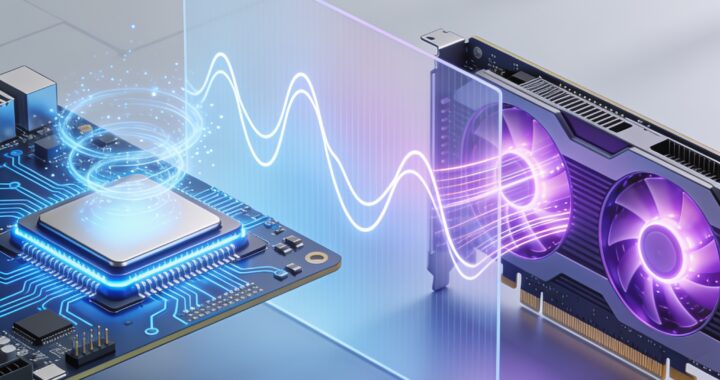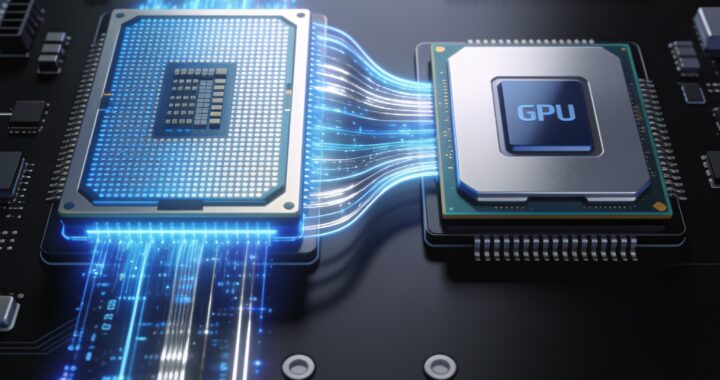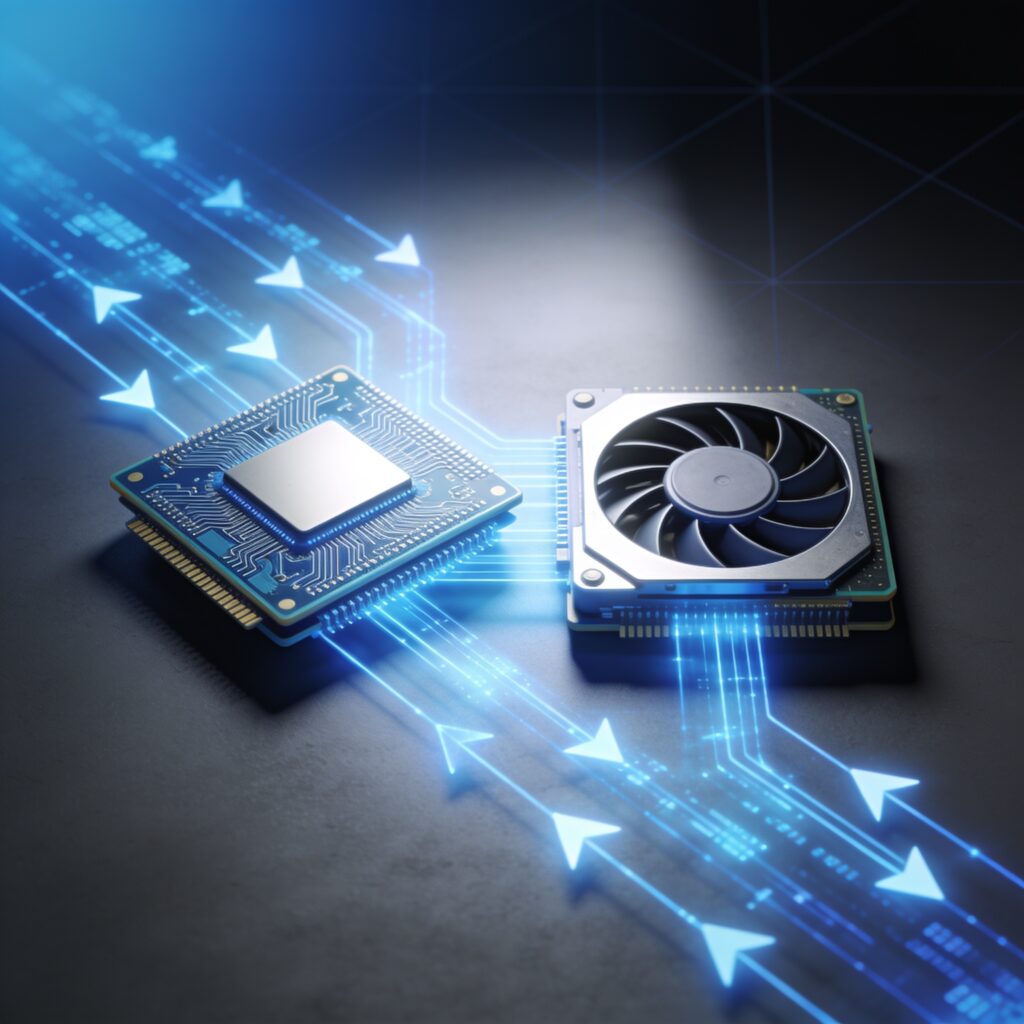
A bottleneck calculator is a tool that estimates how well your CPU and GPU will work together in a gaming PC build. It analyzes the performance headroom of each component to predict whether one will significantly limit the other’s output—helping you avoid mismatched builds before you buy. Understanding how these tools work, what they measure, and how to interpret their results is essential for making confident component choices.
What a Bottleneck Calculator Actually Measures
At its core, a bottleneck calculator compares the processing power of your CPU against the processing power of your GPU at a given resolution and frame-rate target. The tool looks at clock speeds, core counts, memory bandwidth, and VRAM capacity to estimate utilization headroom—the percentage of each component’s capability that will be used under typical gaming loads.
When your GPU finishes rendering frames faster than your CPU can feed it instructions, that’s a CPU bottleneck. Conversely, when your CPU is ready to send more work but your GPU can’t keep up, that’s a GPU bottleneck. A well-balanced build minimizes idle time on either side, though some imbalance is normal and acceptable.
The calculator doesn’t predict actual frame rates—that depends on game optimization, driver quality, and dozens of other factors. Instead, it forecasts which component is more likely to hit 100% utilization first, and by how much the other will be underutilized.
How to Input Your CPU and GPU Specs
Most bottleneck calculators follow a straightforward input process. Here’s what you’ll typically need to provide:
- CPU model: Select from a dropdown or search by processor name. The calculator will auto-fill core count, clock speed, and architecture data.
- GPU model: Choose your graphics card by brand and model. The tool retrieves memory bandwidth, VRAM size, and clock speeds automatically.
- Resolution: Select 1080p, 1440p, 4K, or a custom resolution. This directly affects memory bandwidth demands and shifts the balance between components.
- Frame-rate target: Specify 60 fps, 120 fps, 144 fps, or higher. Higher targets make CPU demands more aggressive relative to GPU work.
- Game preset or settings: Some calculators let you choose “Ultra,” “High,” or “Low” presets, which adjust the estimated workload profile.
Once you’ve filled in these fields, the calculator processes the data and produces a result. The entire process usually takes seconds.
Understanding the Output: Bottleneck Percentages
Calculator results typically display two percentages: one for CPU bottleneck and one for GPU bottleneck. A CPU bottleneck of 20%, for example, means the calculator estimates your GPU will be idle or underutilized roughly 20% of the time because your CPU can’t feed it work fast enough.
There’s no universal threshold for an “acceptable” bottleneck. However, most builders and reviewers consider:
- 0–15%: Excellent balance. Either component can run near full capacity without excessive idle time.
- 15–25%: Good balance. One component will be moderately underutilized, but performance impact is minimal in practice.
- 25%+: Noticeable imbalance. One component will frequently sit idle, meaning you’re not getting full value from one part of your investment.
Keep in mind: these are rough guidelines, not hard rules. A 20% GPU bottleneck in a 1440p build might not hurt frame rates as much as a 20% CPU bottleneck at 1080p, because different resolutions shift work distribution between components.
Why Different Calculators Give Different Results
If you run the same CPU and GPU combination through two separate bottleneck tools, you might see noticeably different percentages. This variance occurs because each calculator uses different methodologies and datasets:
- Architecture weighting: One tool may assume newer CPUs extract more instructions per clock than older ones, adjusting calculations accordingly.
- Memory bandwidth assumptions: Calculators estimate real-world bandwidth differently, especially when accounting for cache efficiency and memory speed.
- Game-workload modeling: Some tools base their estimates on specific benchmarks; others use broader statistical averages.
- Thermal and power headroom: Calculators that factor in thermal throttling or power limits may show different bottleneck percentages than those using stock clock specs.
This margin of error is why no single calculator result should be treated as a definitive verdict. Instead, use multiple tools and look for consistency in the direction and magnitude of the bottleneck, rather than treating one exact percentage as gospel.
How Resolution and Game Settings Affect Results
Resolution is one of the most important variables in any bottleneck calculation. At 1080p, games place relatively more load on the CPU because the GPU finishes work quickly; the same build will show a larger GPU bottleneck at 4K, where the GPU must process far more pixels.
Similarly, in-game graphics settings shift the balance. Ultra settings with high draw-call counts stress the CPU more; maxed texture and shader quality stresses the GPU more. A calculator that assumes “Medium” settings will yield different results than one that assumes “Ultra.” When you’re evaluating results, match the calculator’s settings assumptions to your actual gaming preferences.
Frame-rate targets also play a critical role. Aiming for 60 fps at 1440p is much less CPU-intensive than chasing 240 fps at the same resolution; the latter demands rapid frame delivery, which requires CPU horsepower. Adjust your frame-rate assumption in the calculator to match your monitor’s capabilities and your comfort zone.
Theoretical Bottleneck vs. Practical Performance Impact
A crucial distinction: a high bottleneck percentage in a calculator doesn’t automatically mean bad gaming performance. If you have a 35% GPU bottleneck in a build with a $600 GPU and a $200 CPU, the GPU won’t reach 100% utilization in all games—but you might still get 100+ fps at 1440p, which is an excellent result.
Conversely, a build with a 10% CPU bottleneck might deliver lower frame rates than expected if the CPU runs into thermal limits, driver issues, or game-specific optimization problems. Real-world performance depends on far more than component-pairing balance.
The calculator’s value lies in flagging potentially severe mismatches—for example, pairing a high-end $800 GPU with a budget CPU from five years ago. In that scenario, the calculator correctly predicts substantial wasted GPU performance. It’s less useful for fine-tuning between two mid-range options that will both deliver smooth gameplay.
When to Trust a Bottleneck Calculator—and When to Look Deeper
A bottleneck calculator is most useful when:
- You’re comparing two significantly different CPU or GPU classes (e.g., entry-level vs. high-end) and want a quick sanity check.
- You’re planning a new build and want to ensure your component choices are in the same performance tier.
- You’re troubleshooting a build that feels underperforming and want to rule out a glaring imbalance as a cause.
- You’re trying to understand how resolution or frame-rate targets affect component balance in your specific pairing.
A bottleneck calculator is less reliable when:
- You’re trying to predict exact frame rates or performance deltas between two similar-tier components.
- You’re building around CPU-intensive games (like heavily modded strategy games or heavily-threaded simulation titles) that don’t fit the calculator’s baseline assumptions.
- You’re considering used or older hardware, where power efficiency and thermal characteristics may differ significantly from specifications.
- You need to account for driver updates, upcoming game releases, or architectural improvements that the calculator’s data doesn’t reflect.
For the most confident buying decision, use a bottleneck calculator as a starting point, then validate with real-world benchmark videos featuring your exact component pairing at your target resolution and frame rate. Look for reviews that test the same CPU and GPU combo to see practical results, not just estimates.
Putting It All Together: A Practical Example
Imagine you’re considering a mid-range CPU and a high-end GPU for 1440p gaming at 144 fps. You run the pair through a bottleneck calculator and see a 22% GPU bottleneck. That means the calculator estimates your CPU will be the limiting factor—the GPU won’t hit full utilization because your CPU can’t deliver frames fast enough.
Before deciding the build is imbalanced, consider:
- Will 22% GPU underutilization actually matter if you’re hitting your 144 fps target? If yes, then the build is balanced for your needs.
- Did the calculator assume High or Ultra settings? If you prefer Medium or High, your actual workload will be lighter, and the bottleneck may disappear in practice.
- What do benchmark videos show for this specific pairing? If reviewers are hitting 144+ fps at 1440p Ultra, the calculator’s estimate of significant GPU underutilization may be pessimistic.
Using the calculator as a guide rather than a verdict, you make a more informed choice.
Final Thoughts
A bottleneck calculator is a useful starting tool for PC builders, offering a quick way to flag potential component mismatches and understand how resolution and frame-rate targets shift workload balance. However, it’s not a substitute for real-world benchmarking, driver quality, game optimization, and your own performance targets. Use the calculator to narrow your options, then verify with independent reviews and gameplay data before finalizing your build. This balanced approach—combining calculator estimates with practical validation—gives you the confidence to choose components that will deliver the gaming experience you want.